
Why wasn’t my trip recorded?
Here are the usual reasons a drive doesn’t show up in DriverAI, and how to fix them.
Is every item in Tracking Config green?
Home → sidebar → Tracking → Tracking Config
Open the sidebar, expand Tracking, then tap Tracking Config.
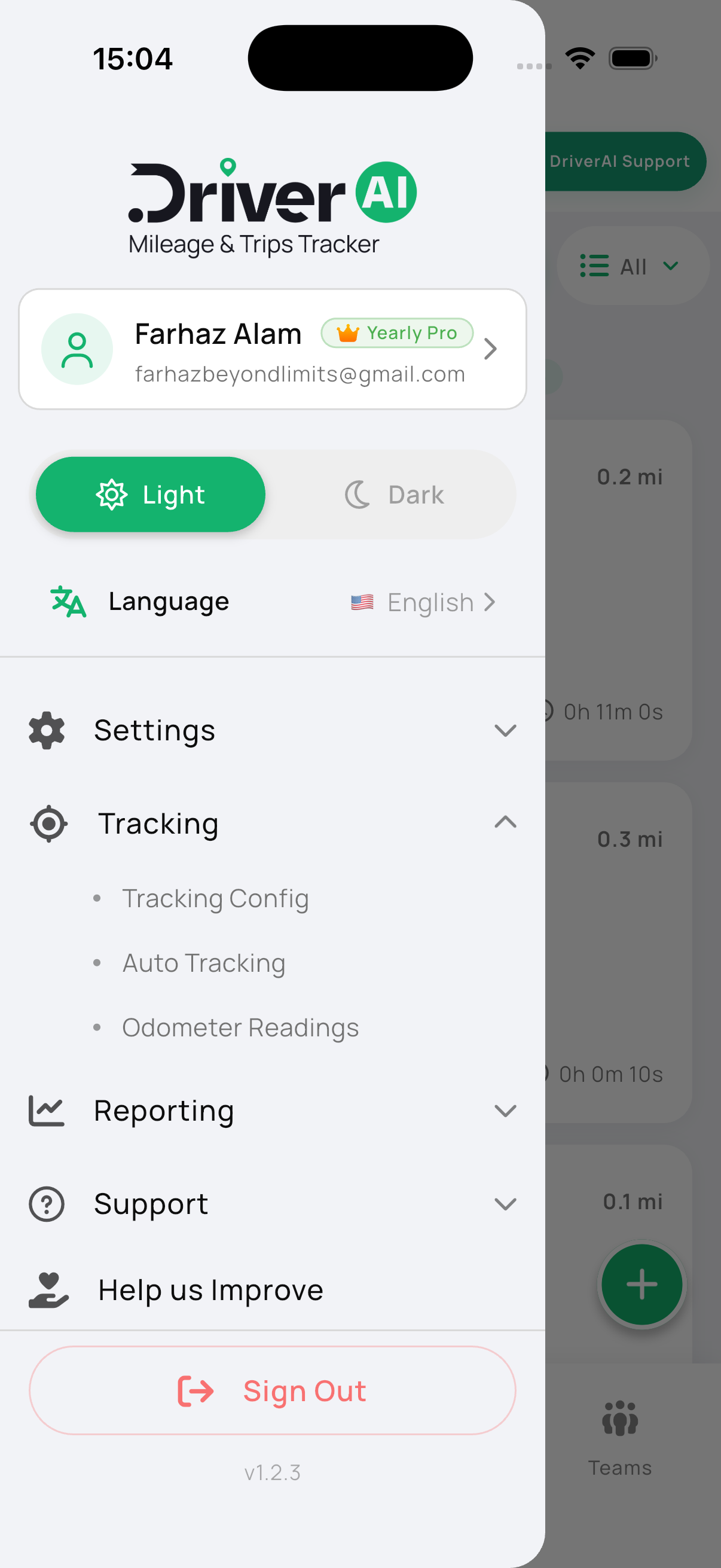
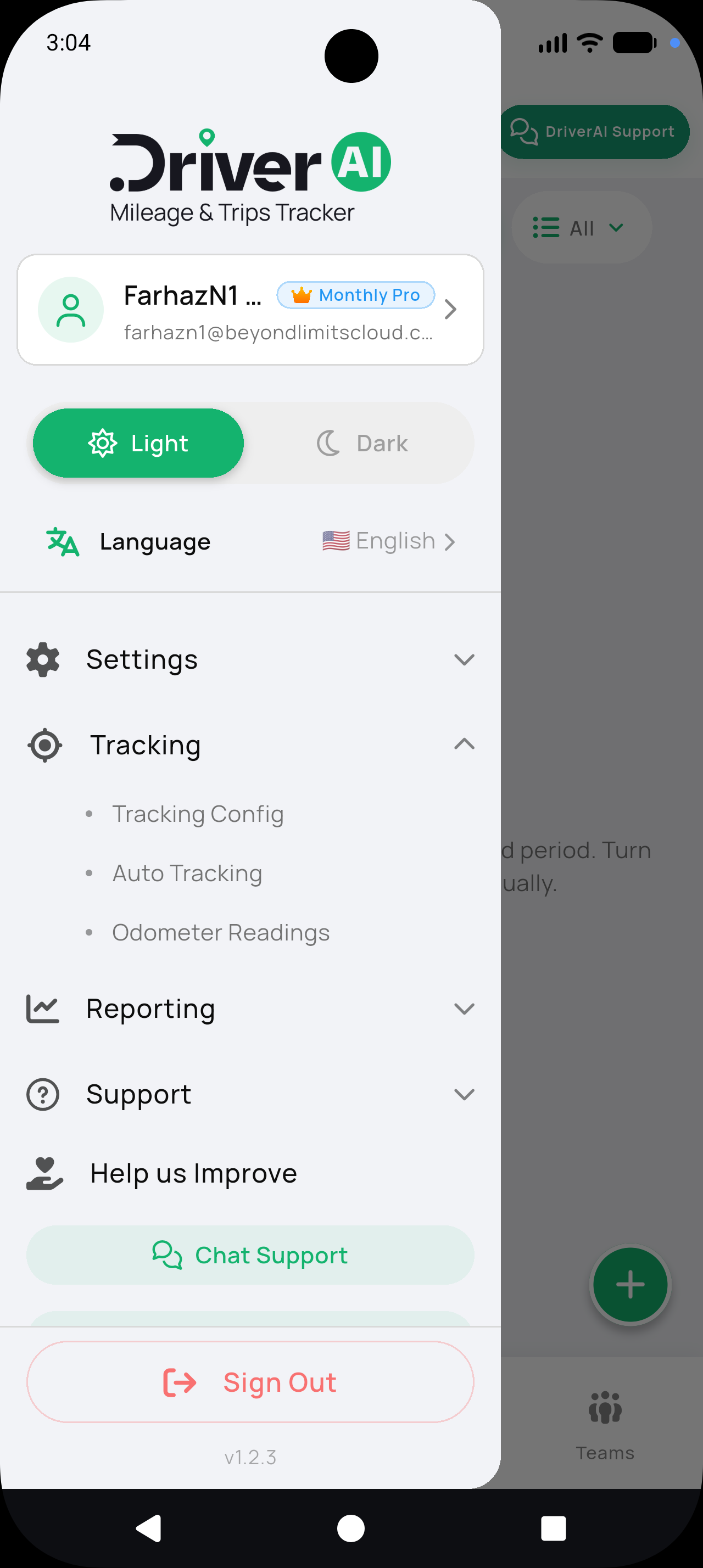
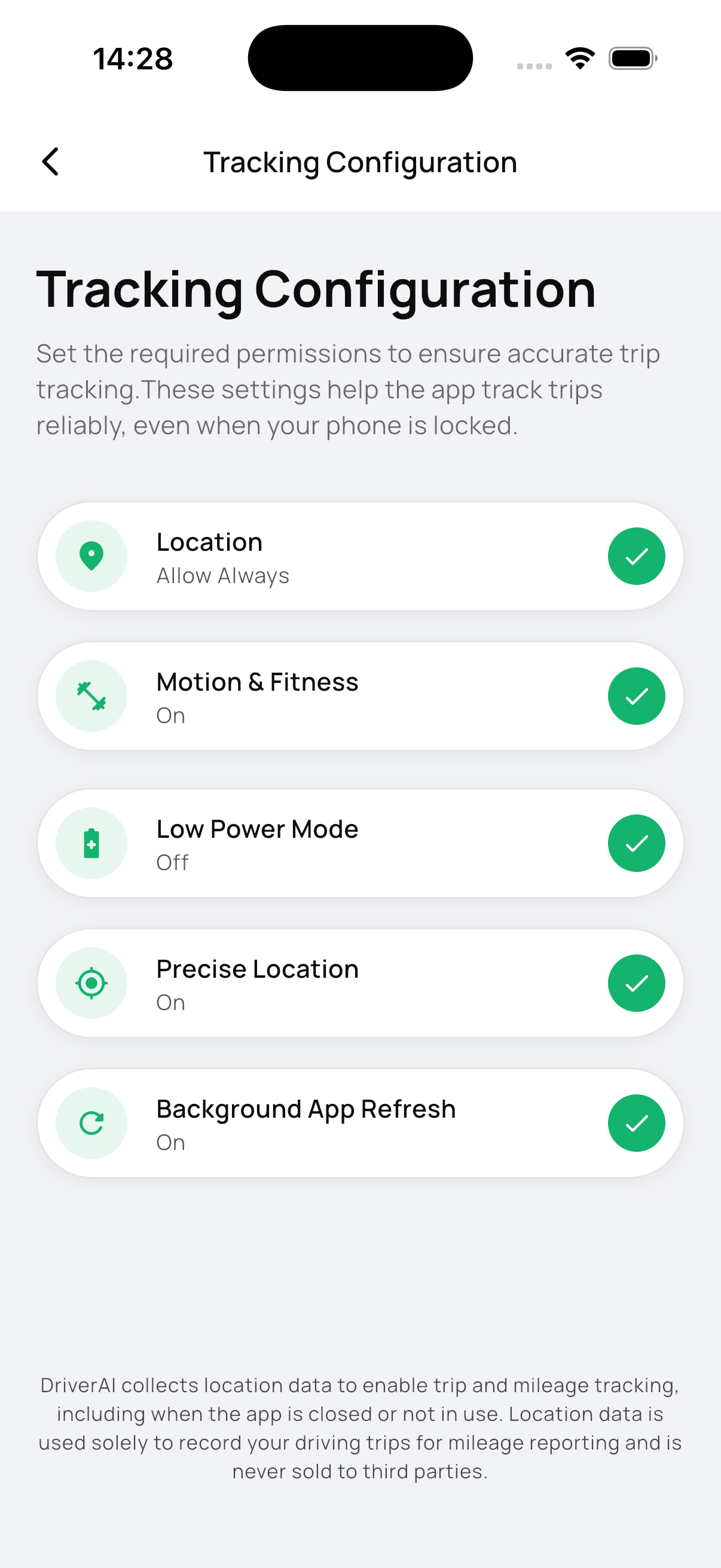
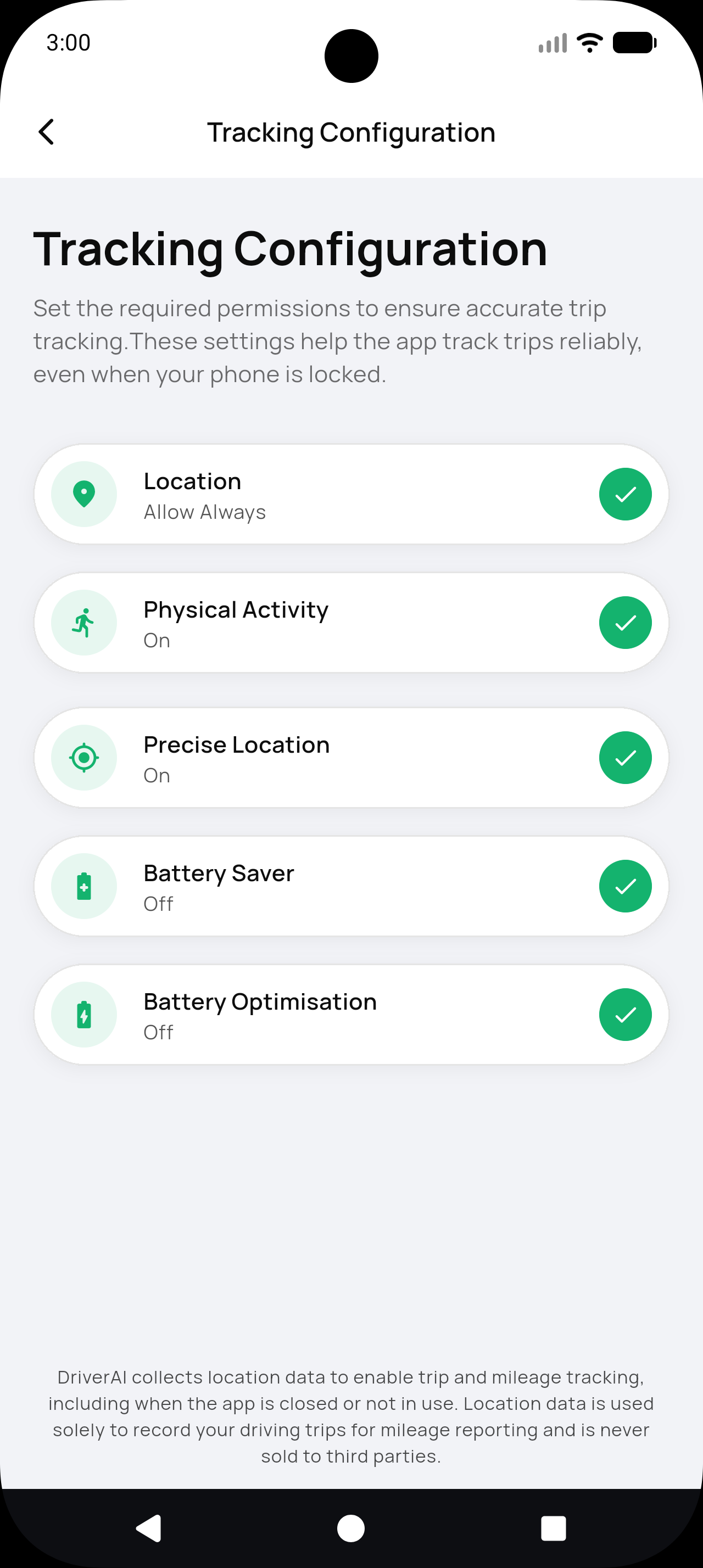
Each row should show a green check. If any row has a warning, tap it and follow the prompt into your phone settings.
Auto Tracking will not stay on without Location Always (iPhone) / All the time (Android) and Motion & Fitness (iPhone) / Physical Activity (Android).
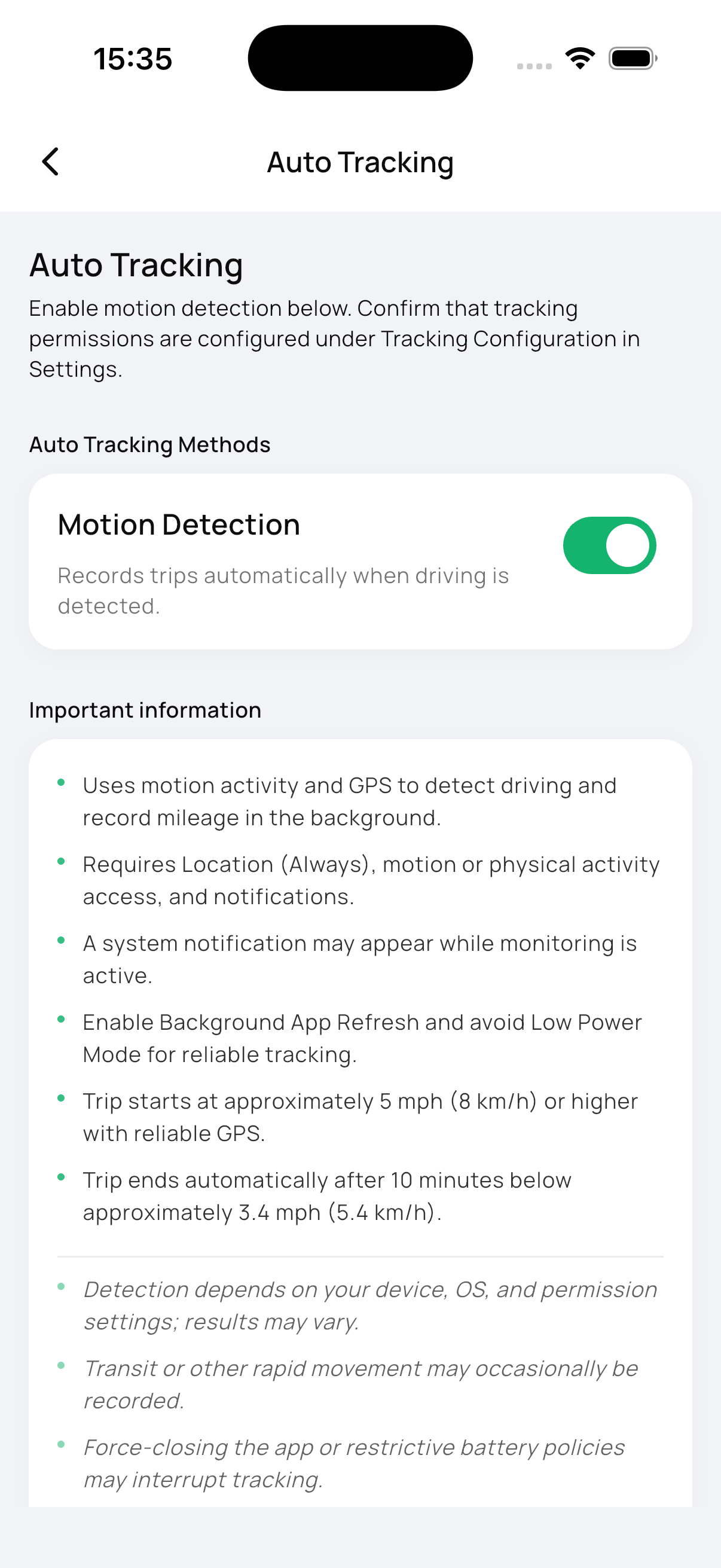
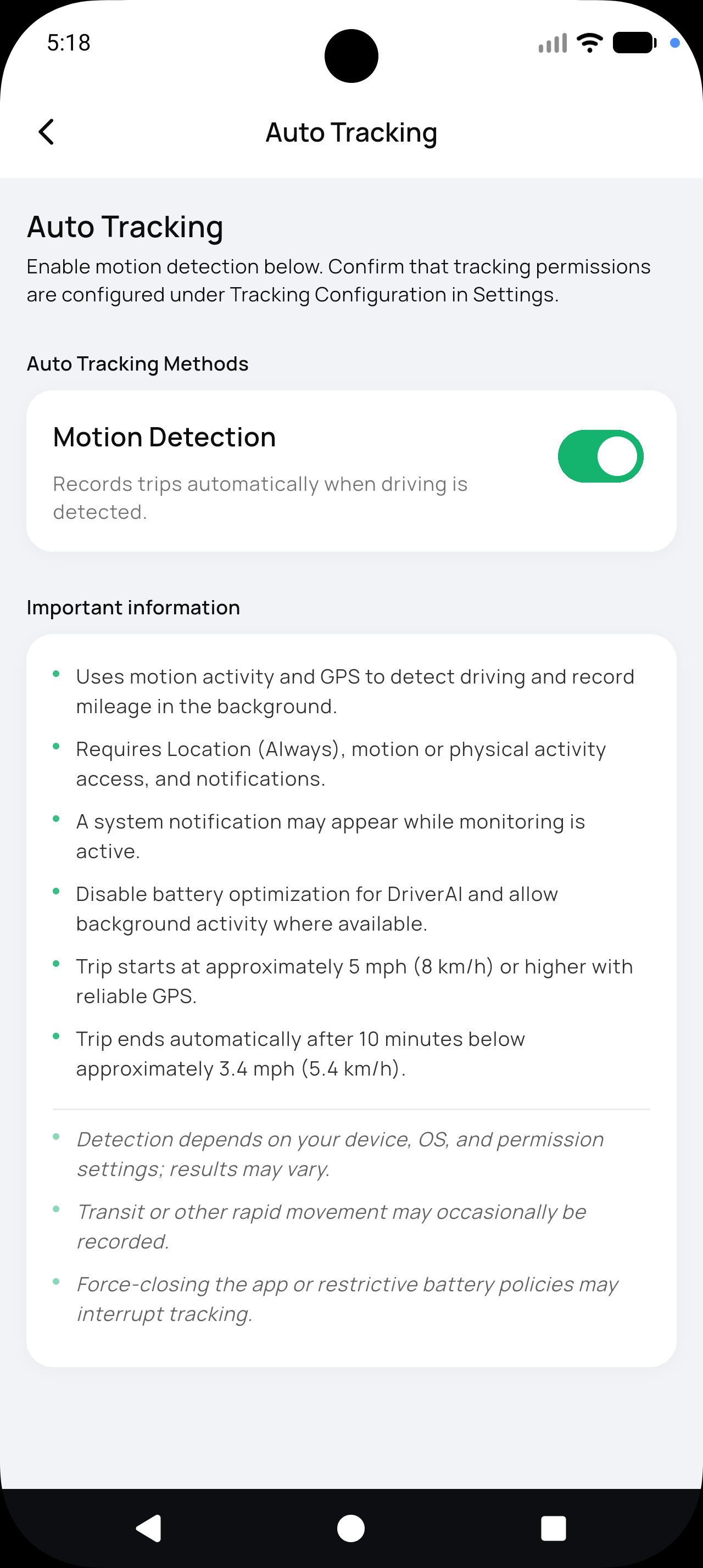
Is Motion Detection turned on?
Home → sidebar → Tracking → Auto Tracking
Turn Motion Detection on. If it does not stay on, follow the error sheet (permissions, subscription, or mock / fake GPS).
If you see a lock, Auto Tracking needs an active subscription.
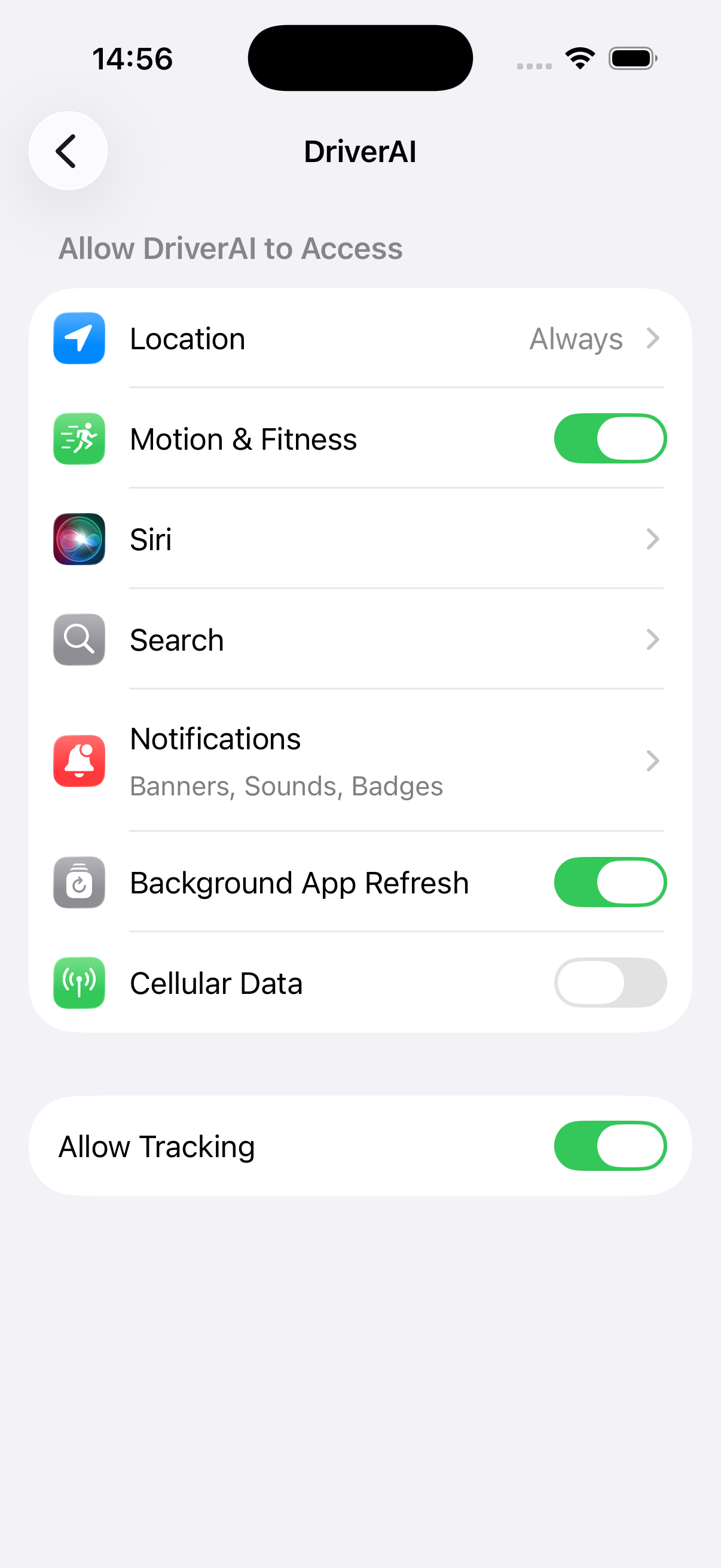
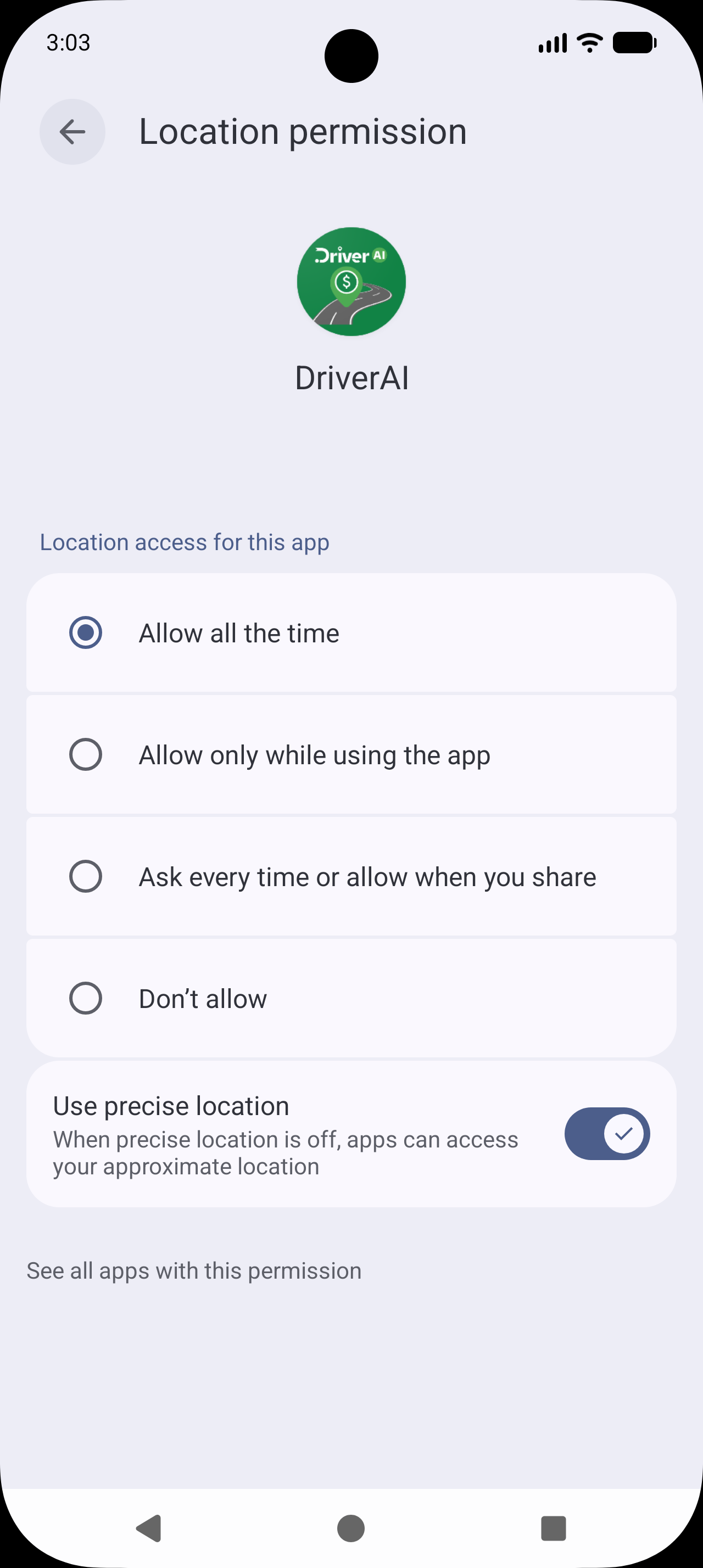
Is Location set to Always — not “While Using”?
“While Using the App” looks like access is granted, but background drives will not record.
- iPhone: Settings → DriverAI → Location → Always, and turn Precise Location on
- Android: Settings → Apps → DriverAI → Permissions → Location → Allow all the time, with Precise on (Android 12+)
Return to DriverAI so Tracking Config can refresh.
Is DriverAI still allowed to run in the background?
Android — this is supposed to work with the app closed. Leave DriverAI. Lock the phone. Use other apps. Tracking continues as long as the persistent notification is still there: “Auto tracking standing by — Monitoring device movement.”
- Do not swipe that notification away. If it disappears, monitoring has stopped — open DriverAI and turn Motion Detection back on if needed.
- You do not need to keep the DriverAI screen open.
Force Stop in Android Settings is different: that fully kills the app and the notification. Then you must open DriverAI again before the next drive.
iPhone Leave DriverAI in the background. Don’t swipe it out of the app switcher before a drive. If you force-quit it, open it again before you go. You may get: “Auto trip tracking stopped — DriverAI was closed unexpectedly. Reopen the app to resume auto trip tracking.”
Is battery saving interfering?
Android
- Battery Saver off
- Battery optimisation for DriverAI off (Unrestricted)
- On Samsung, Xiaomi, Huawei, Oppo, OnePlus, and similar: allow Auto-start / background activity for DriverAI
When you enable Auto Tracking, if you see Battery Optimization Active, choose Disable Battery Optimization. Continue Anyway can mean missed trips.
iPhone
- Low Power Mode off
- Background App Refresh on for DriverAI
Was it actually a drive — at driving speed?
A trip starts around 5 mph (8 km/h) with a reliable GPS lock. Walking, parking-lot GPS jitter, and very short hops before GPS locks in are ignored on purpose.
It may miss:
- A drive that starts in a garage, underground, or dense downtown until the signal is clear
- Slow crawling that never reaches ~5 mph with good accuracy
After you stop, DriverAI waits about 10 minutes below ~3.4 mph (5.4 km/h) before ending the trip. A 2-minute light or drop-off is still the same trip.
Were you on a train, bus, or a passenger ride?
Motion plus GPS can look like driving. Transit or other rapid movement may occasionally be recorded. Delete or recategorize those trips. DriverAI is for your driving mileage — it can’t always tell driver from passenger.
Was GPS weak?
Poor GPS is ignored so indoor drift doesn’t invent miles.
- Wait a few seconds outside before pulling away
- Keep Location on
- Leave Wi‑Fi on — it helps the phone locate you even if you aren’t on a network
- Don’t use mock / fake GPS apps. If mock location is on, DriverAI can block the trip and turn Auto Tracking off.
Have you checked the tracker by starting a trip manually?
If Auto Tracking isn’t picking up your drives, start the next trip yourself to see whether GPS and the app are working.
On the home screen, tap the + button → Start Tracking Trip. When you’re done, tap Stop Tracking.
- Manual works, auto doesn’t → permissions, battery, or background settings. Recheck Tracking Config and confirm Motion Detection is on. On Android, confirm the standby notification is still showing.
- Manual also fails → Location Services / GPS on the device, or a subscription / trip-limit block.
Starting a trip manually can also help reset the tracker so the next drive is captured automatically.
Have you opened DriverAI recently?
Open the app a couple of times a week. Phones deprioritize apps they think you never use. On iPhone this keeps motion and location sensors fresh. On Android, open it if the standby notification is gone.
Are you on the latest DriverAI?
Update from the App Store or Google Play, then open Auto Tracking once so monitoring can restart.
DriverAI
Quick check before you drive
- Tracking Config all green
- Motion Detection on
- Android: standby notification still showing
- iPhone: DriverAI not swiped away
- Battery Saver / Low Power Mode off